Virtualbox Setup on Fedora 19

文章目录
OS: Fedora 19 x86_64
VirtualBox: VirtualBox-4.3-4.3.10_93012_fedora18-1.x86_64
Current kernel:
[hoyao@dhcp-13-113 clientcfg]$ uname -r
3.13.7-100.fc19.x86_64
Ensure following kernel* packages are installed, and version is same with running kernel
[hoyao@dhcp-13-113 clientcfg]$ rpm -qa|grep kernel
kernel-3.13.7-100.fc19.x86_64
kernel-headers-3.13.7-100.fc19.x86_64
kernel-devel-3.13.7-100.fc19.x86_64

# yum install gcc dkms
Reboot to take effect
Download and Install
VirtualBox-4.3-4.3.10_93012_fedora18-1.x86_64
If you met problem when installing Virtualbox, ensure the kernel rpm and version are all correct, and run:
/etc/init.d/vboxdrv setup
安装Ghost XP
我下载的是深度的ghostxp 2013.11版本的
遇到的问题如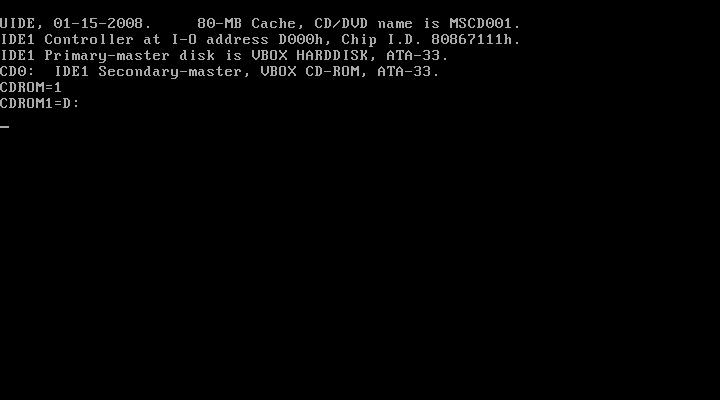
解决:
启动后,进
DOS工具箱, 运行pq分区,将主分区设置为作用
DOS工具箱, 运行ghost来安装
安装virtualbox增强包:
点菜单“Devices” - “Insert Guest additions CD image", 然后会在xp中安装,安装完重启即可。你会发现分辨率自动变大充满PC的屏幕
安装centos6.5:
[root@localhost ~]# rpm -qa|grep kernel
kernel-devel-2.6.32-431.11.2.el6.x86_64
kernel-firmware-2.6.32-431.11.2.el6.noarch
kernel-headers-2.6.32-431.11.2.el6.x86_64
kernel-2.6.32-431.11.2.el6.x86_64
[root@localhost ~]# uname -r
2.6.32-431.11.2.el6.x86_64
确保都安装,并安装gcc, 且与当前运行的内核版本一致
重启生效
安装virtualbox增强包:
点菜单“Devices” - “Insert Guest additions CD image"
[root@localhost ~]# mount /dev/cdrom /mnt/cdrom
mount: block device /dev/sr0 is write-protected, mounting read-only
[root@localhost ~]# cd /mnt/cdrom
[root@localhost cdrom]# ls
32Bit  AUTORUN.INF  cert  runasroot.sh            VBoxSolarisAdditions.pkg        VBoxWindowsAdditions.exe
64Bit  autorun.sh   OS2   VBoxLinuxAdditions.run  VBoxWindowsAdditions-amd64.exe  VBoxWindowsAdditions-x86.exe
[root@localhost cdrom]# ./VBoxLinuxAdditions.run
Verifying archive integrity... All good.
Uncompressing VirtualBox 4.3.10 Guest Additions for Linux............
VirtualBox Guest Additions installer
Removing installed version 4.3.10 of VirtualBox Guest Additions...
Copying additional installer modules ...
Installing additional modules ...
Removing existing VirtualBox non-DKMS kernel modules       [  OK  ]
Building the VirtualBox Guest Additions kernel modules
Building the main Guest Additions module                   [  OK  ]
Building the shared folder support module                  [  OK  ]
Building the OpenGL support module                         [  OK  ]
Doing non-kernel setup of the Guest Additions              [  OK  ]
Starting the VirtualBox Guest Additions                    [  OK  ]
Installing the Window System drivers
Could not find the X.Org or XFree86 Window System, skipping.
重启VM生效
其他:
1. 双向共享剪贴板
click VM "Settings" - "General" - "Advanced", in "Shared clipborad" Choose "bidirectional" (必须确认virtualbox增强包 已经安装了)
2.关于网络
VirtualBox中有4中网络连接方式介绍:
①、NAT:NetworkAddressTranslation,网络地址转换----一般选择这个(也是VM默认的网络连接方式)。
NAT模式是最简单的实现虚拟机上网的方式。虚拟机可以访问互联网、可以通过网络访问到主机,但主机无法通过网络访问到虚拟机。
②、Bridged Adapter,网桥模式、桥接模式
它是通过主机网卡,架设了一条桥,直接连入到网络中了。因此,它使得虚拟机能被分配到一个网络中独立的IP,所有网络功能完全和在网络中的真实机器一样。虚拟机与主机可以相互访问,因为虚拟机在真实网络段中有独立IP,主机与虚拟机处于同一网络段中,彼此可以通过各自IP相互访问。
③、Internal,内网模式、内部网络。一般不选用
顾名思义就是内部网络模式,虚拟机网络:虚拟机与外网(互联网)完全断开,只实现虚拟机于虚拟机之间的内部网络模式。虚拟机与主机不能相互访问,彼此不属于同一个网络,无法相互访问。
④、Host-only Adapter(主机模式)
只能与主机互相通信
例:
要求:给VM增加一个网口,以NAT方式连接,主机可以ssh上虚拟机
解决: 菜单”File" - "Preferences" - Network - "Host-only Networks", 点击“+”的按钮即可增加一个虚拟网络, 如下:
在主机上用ifconfig有
vboxnet0: flags=4163<UP,BROADCAST,RUNNING,MULTICAST>  mtu 1500
        inet 192.168.56.1  netmask 255.255.255.0  broadcast 192.168.56.255
在虚拟机“settings”菜单中做如下配置即可:
Refer
1. https://ask.fedoraproject.org/en/question/40926/trying-to-install-virtualbox-or-vmware-fedora-20/
2. 关于ghost xp安装 http://www.zhihu.com/question/21388833
3. 关于网络模式: http://hi.baidu.com/hhxq001/item/50c31625fbd5db0b77272c75
评论
登录后参与技术讨论,分享你的经验与见解。
登录 / 注册暂无评论