手把手教你创建ASP.NET Web Forms 仪表盘应用

文章目录
DevExpress拥有.NET开发需要的所有平台控件,包含600多个UI控件、报表平台、DevExpress Dashboard eXpressApp 框架、适用于 Visual Studio的CodeRush等一系列辅助工具。
本教程将为大家演示如何使用ASPxDashboard控件创建仪表板Web应用程序。
Steps 1-3. 添加Web仪表板控件
- 在Visual Studio中,创建一个新的项目并在开始页面上选择ASP.NET Web Application (.NET Framework)作为项目模板,然后选择Empty模板并单击OK。
- 将新的Web Form添加到应用程序,请在Solution Explorer中右键单击该项目,然后选择Add | Web Form。
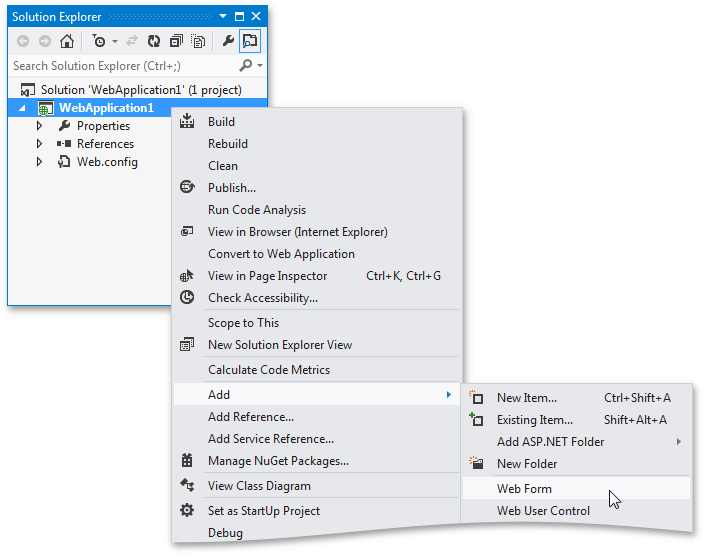
保留默认的'WebForm1'项目名称,然后在调用的对话框中单击OK。
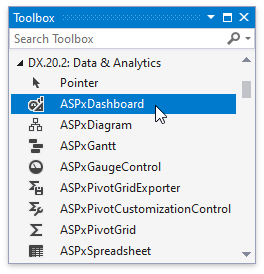
- 从DX.20.2:Data & Analytics Toolbox选项卡中将ASPxDashboard控件拖放到页面上。
将网页切换到Design视图。
Steps 4-5. 创建Dashboard存储
- 在Solution Explorer中右键单击该项目,然后从上下文菜单中选择Add | Add ASP.NET Folder | App_Data,并在App_Data中添加Dashboards文件夹。
- 单击控件的智能标记,然后将Dashboard Storage Folder设置为以下相对路径:_~/App_Data/Dashboards_。
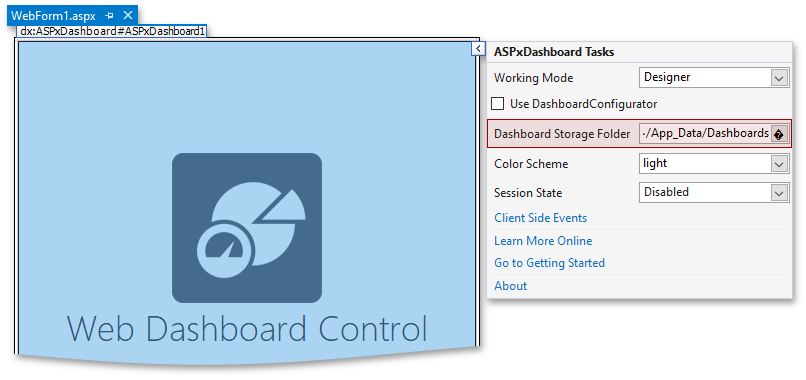
此文件夹包含已保存的仪表板的XML定义。
Steps 6-8. 提供数据
- 右键单击App_Data文件夹,然后选择Add | Existing项,并使用以下路径找到nwind.mdb数据库:
C:UsersPublicDocumentsDevExpress Demos 20.2ComponentsDatanwind.mdb
- 在项目的Web.config文件中指定到添加的数据库的连接字符串,如下所示。
XML
`<configuration>
<connectionStrings>
<add name="nwindConnection" connectionString="XpoProvider=MSAccess; Provider=Microsoft.Jet.OLEDB.4.0; Data Source=|DataDirectory|nwind.mdb;" />
</connectionStrings>
</configuration>`
注意:请注意,连接字符串应包含XpoProvider参数,该参数取决于所使用的数据库类型。
- 在WebForm1.aspx.cs的Page_Load方法中,将ConfigFileConnectionStringsProvider实例作为SetConnectionStringsProvider方法的参数传递,以允许基于来自Web.config文件的连接字符串创建新的数据源:
C#
`using DevExpress.DashboardWeb;
protected void Page_Load(object sender, EventArgs e) {
// ...
ASPxDashboard1.SetConnectionStringsProvider(new DevExpress.DataAccess.Web.ConfigFileConnectionStringsProvider());
}`
VB.NET
`Imports DevExpress.DashboardWeb
Protected Sub Page_Load(ByVal sender As Object, ByVal e As EventArgs)
' ...
ASPxDashboard1.SetConnectionStringsProvider(New DevExpress.DataAccess.Web.ConfigFileConnectionStringsProvider())
End Sub`
Step 9. 添加所需的客户端库
- 在Web应用程序的Web.Config文件中,跳转到DevExpress部分,然后添加“ resources”部分,如下所示。
XML
`<devExpress>
<!-- ... -->
<resources>
<add type="ThirdParty" />
<add type="DevExtreme" />
</resources>
</devExpress>`
这会将所需的客户端库添加到项目中,例如jquery、jquery-ui、knockout和globalize。
注意:库中包含Web仪表板所需的基本cldr内容。 但是,对于除"en"(或``USD''以外的货币)以外的语言环境,应另外加载cldr内容。
Steps 10-11. 创建Dashboard
- 现在可以使用设计器应用程序,生成并运行项目。
您的应用程序应如下所示:

- 有关如何在Web设计器中创建第一个仪表板的说明,请转到Create a Dashboard using the Web Dashboard。
Steps 12-14. 切换到Viewer模式
创建并保存仪表板后,可以将Dashboard Designer应用程序切换到Viewer模式。
- 在项目中,切换到_WebForm1.aspx_,然后单击控件的智能标记。
- 将工作模式选项设置为“ ViewerOnly”。
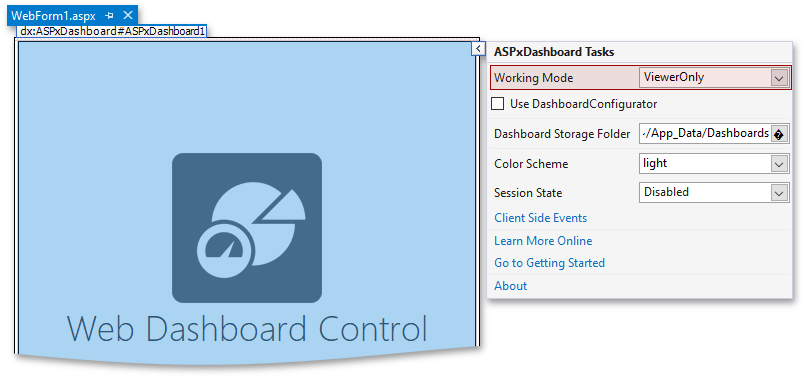
- 运行应用程序。 ASPxDashboard控件显示〜/ App_Data / Dashboards中的仪表板。
评论
登录后参与技术讨论,分享你的经验与见解。
登录 / 注册暂无评论