用Python制作一个相册播放器(附源码)
文章目录
对于相册播放器,大家应该都不陌生(用于浏览多张图片的一个应用)。
当然还有视频、音乐播放器,同样是用来播放多个视频、音乐文件的。
在Win10系统下,用【照片】这个应用打开一张图片,就可以浏览该图片所在文件夹中其它图片了。
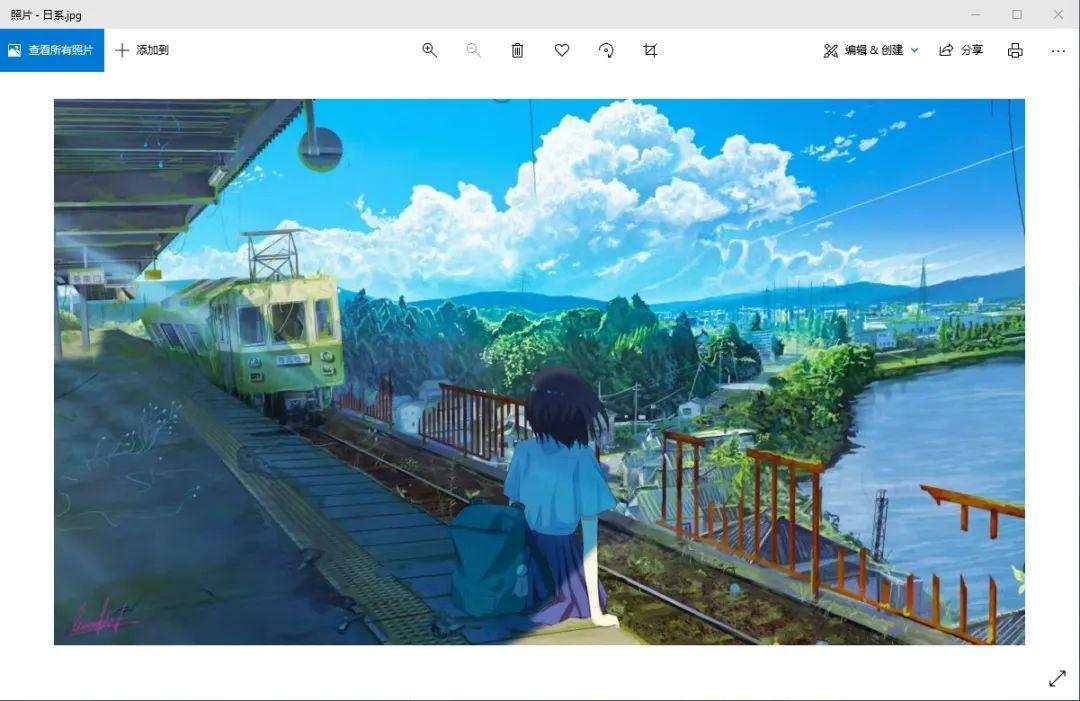
从上面的图中发现,还有不少其它方面的功能,比如图片裁剪、编辑、打印等。
今天就带大家学习一个Python制作相册播放器的实战项目。
功能嘛,当然没有系统自带的好,仅做学习哈。
默认5秒切换一张图片,点击向前按钮,可以快速切换到下一张图片。
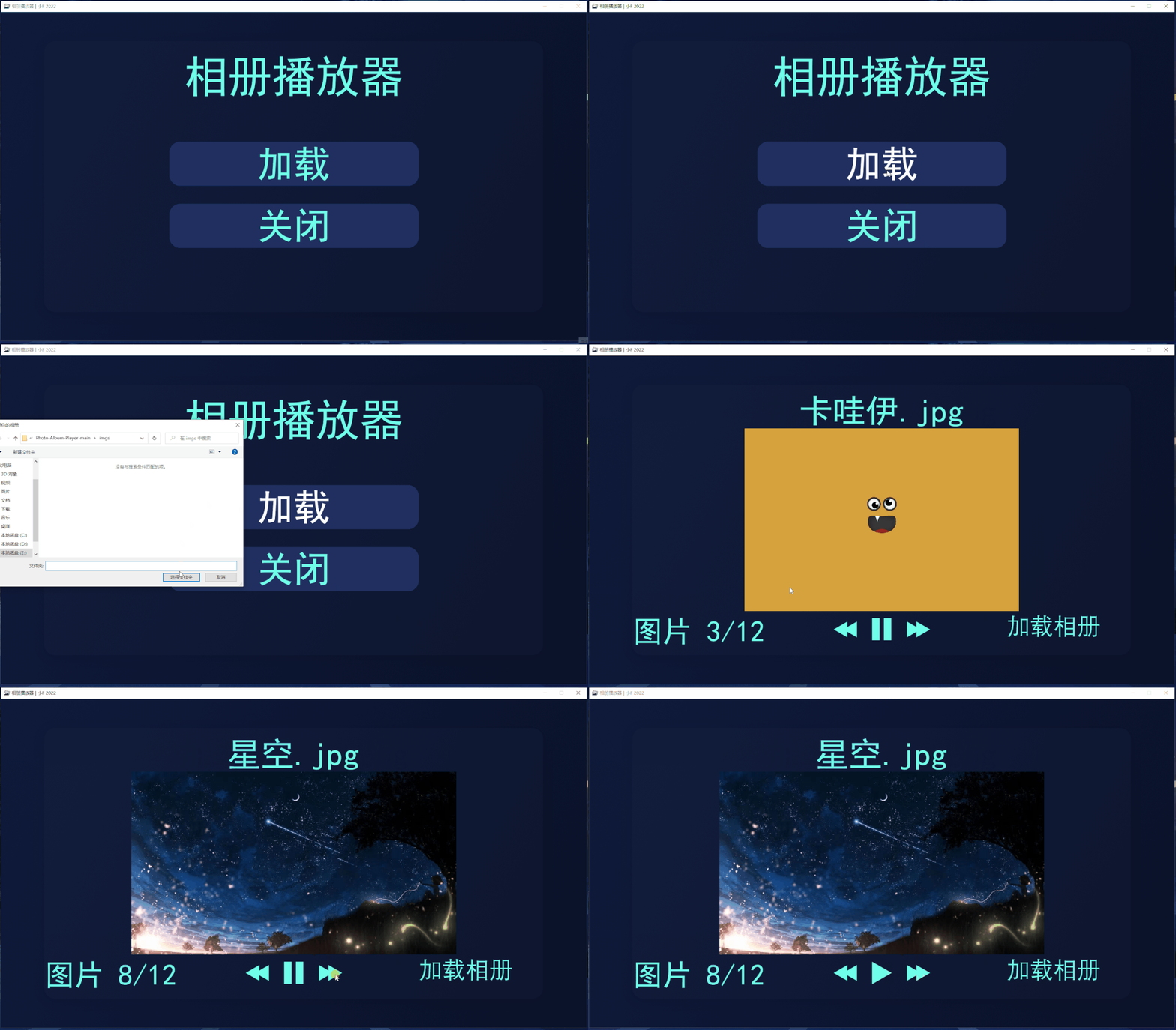
主要使用到Pygame这个库,创建一个图形界面。
还有Tkinter库,因为要添加一个图片文件夹,使用tkinter的filedialog快速选取本地文件夹。
# 安装
pip install pygame
pip install tkinter
好了,接下来就给大家介绍一下。
导入相关库。
import os
import sys
import glob
import pygame
import tkinter
import os.path
from button import Button
from tkinter import filedialog
初始化,设置图形界面的宽为1600,高为900。
添加标题栏图表和标题栏文字,以及中文字体,这里用宋体,所以界面显得有些丑...
最后设置文字背景色和背景图片。
# 初始化
pygame.init()

# 设置宽, 高, 标题栏
WIDTH, HEIGHT = 1600, 900
SCREEN = pygame.display.set_mode((WIDTH, HEIGHT))
pygame.display.set_caption("相册播放器 | 小F 2022")


# 添加中文字体
def bold_font(size):
    os.chdir(sys.path[0])
    return pygame.font.Font("assets/simhei.ttf", size)


def regular_font(size):
    return pygame.font.SysFont("simhei", size)

# 设置文字背景色, 背景图片
BASE_TEXT_COLOR = "#6fffe9"
BACKGROUND_IMAGE = pygame.image.load("assets/background.png")
SCREEN.blit(BACKGROUND_IMAGE, (0, 0))
# 更新
pygame.display.update()

# 设置标题栏图标
WINDOW_ICON = pygame.image.load("assets/window_icon.png")
pygame.display.set_icon(WINDOW_ICON)
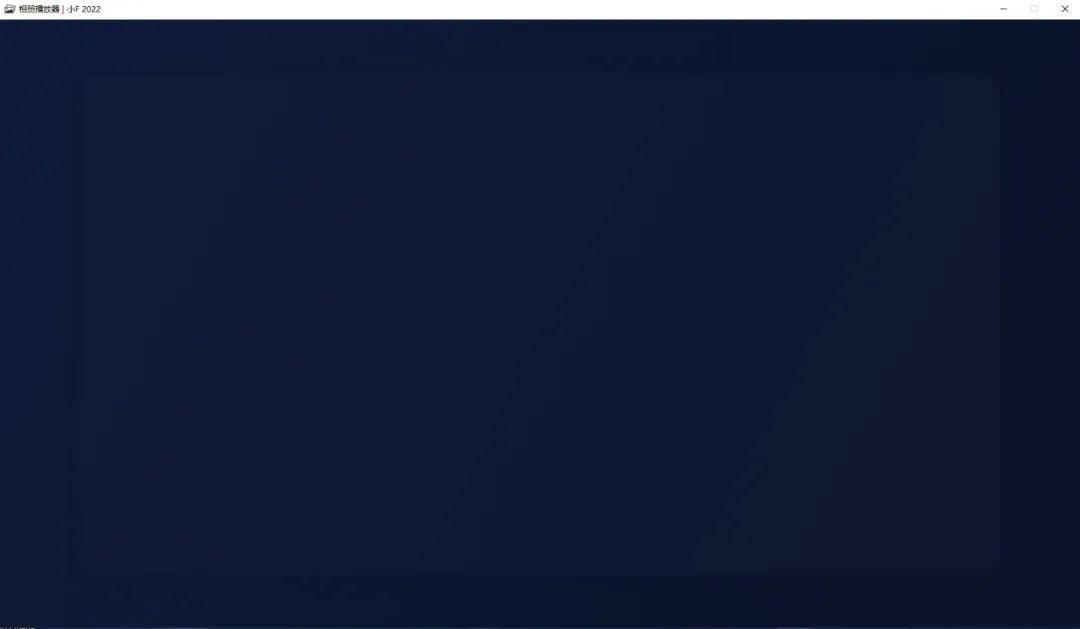
效果如下,空空荡荡。
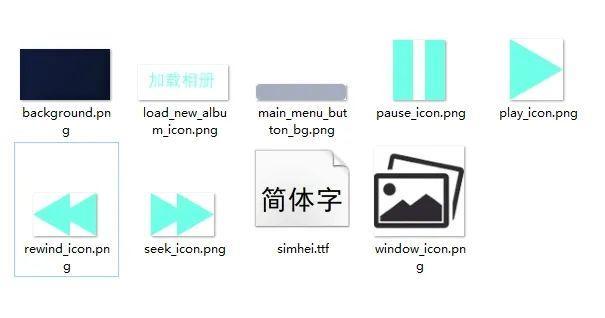
加载部分按钮的图标。
# 设置按钮背景色, 向后按钮, 暂停按钮, 播放按钮, 向前按钮, 加载新相册按钮
MAIN_MENU_BUTTON_BACKGROUND = pygame.image.load("assets/main_menu_button_bg.png")
REWIND_ICON_SURFACE = pygame.image.load("assets/rewind_icon.png")
PAUSE_ICON_SURFACE = pygame.image.load("assets/pause_icon.png")
PLAY_ICON_SURFACE = pygame.image.load("assets/play_icon.png")
SEEK_ICON_SURFACE = pygame.image.load("assets/seek_icon.png")
LOAD_NEW_ALBUM_SURFACE = pygame.image.load("assets/load_new_album_icon.png")
设置按钮背景色,向后按钮,暂停按钮,播放按钮,向前按钮,加载新相册按钮。
其次定义各个按钮的功能函数。
# 加载按钮函数
def load_button():
    # 打开文件管理器, 选择文件夹
    filedialogwindow = tkinter.Tk()
    filedialogwindow.withdraw()
    filepath = filedialog.askdirectory(title="选择你的相册")
    filedialogwindow.destroy()
    album_player(filepath)


# 关闭按钮
def quit_button():
    pygame.quit()
    sys.exit()


# 向后按钮
def rewind_button(current_image_index):
    if current_image_index > 0:
        current_image_index -= 1
    rewind_button_pressed = True
    return rewind_button_pressed, current_image_index


# 向前按钮
def seek_button(current_image_index, image_names):
    if current_image_index+1 < len(image_names):
        current_image_index += 1
    seek_button_pressed = True
    return seek_button_pressed, current_image_index


# 播放按钮
def play_button():
    paused = False
    unpaused = True
    return paused, unpaused


# 暂停按钮
def pause_button():
    paused = True
    unpaused = False
    return paused, unpaused
加载按钮,添加相册;
关闭按钮,退出播放器;
向后按钮,向后切换一张图片;
向前按钮,向前切换一张图片;
播放按钮,开始播放相册中的图片;
暂停按钮,暂停相册图片的播放;
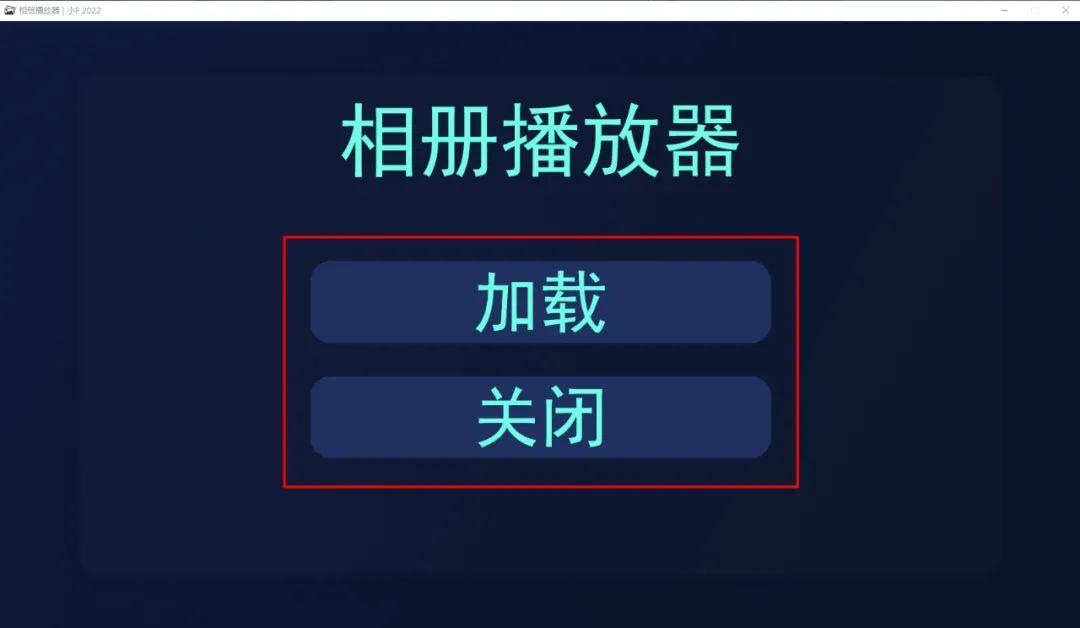
设置主界面,包含主页标题栏,加载按钮,关闭按钮文字属性。
同时还需要监听鼠标点击事件。
# 主界面
def main_menu():
    # 主页标题栏
    TITLE_TEXT_SURFACE = bold_font(120).render("相册播放器", True, BASE_TEXT_COLOR)
    TITLE_TEXT_RECT = TITLE_TEXT_SURFACE.get_rect(center=(WIDTH/2, 175))
    SCREEN.blit(TITLE_TEXT_SURFACE, TITLE_TEXT_RECT)
    # 加载按钮
    LOAD_BUTTON = Button(
        surface=MAIN_MENU_BUTTON_BACKGROUND, pos=(WIDTH/2, 415), text_input="加载",
        font=bold_font(100), base_color=BASE_TEXT_COLOR, hovering_color="white"
    )
    # 关闭按钮
    QUIT_BUTTON = Button(
        surface=MAIN_MENU_BUTTON_BACKGROUND, pos=(WIDTH/2, 585), text_input="关闭",
        font=bold_font(100), base_color=BASE_TEXT_COLOR, hovering_color="white"
    )
    while True:
        # 监听鼠标点击事件
        current_mouse_pos = pygame.mouse.get_pos()
        LOAD_BUTTON.update(SCREEN)
        QUIT_BUTTON.update(SCREEN)
        # 根据鼠标点击情况, 是否点击右上角的关闭
        for event in pygame.event.get():
            if event.type == pygame.QUIT:
                pygame.quit()
                sys.exit()
            # 根据鼠标点击情况, 点击加载或关闭按钮
            if event.type == pygame.MOUSEBUTTONDOWN:
                if LOAD_BUTTON.check_for_input(current_mouse_pos):
                    load_button()
                if QUIT_BUTTON.check_for_input(current_mouse_pos):
                    quit_button()

        # 当鼠标放置在按钮上, 按钮颜色发生改变
        LOAD_BUTTON.change_color(current_mouse_pos)
        QUIT_BUTTON.change_color(current_mouse_pos)
        pygame.display.update()
根据鼠标点击情况, 是否点击右上角的关闭;
根据鼠标点击情况, 点击加载或关闭按钮;

当鼠标放置在按钮上, 按钮颜色发生改变,变成白色。点击关闭,应用会关闭掉。
最后是相册播放器的功能函数,设置每5s切换一张图片。
此外还要调整图片的尺寸大小,方便在播放器中查看。
# 相册播放器功能函数
def album_player(folder_path):
    SCREEN.blit(BACKGROUND_IMAGE, (0, 0))

    image_file_paths = []
    image_names = []
    current_image_index = 0
    paused = False
    unpaused = False
    seek_button_pressed = False
    rewind_button_pressed = False

    # 添加加载按钮后, 得到的图片文件夹路径
    os.chdir(folder_path)
    for file in glob.glob("*"):
        current_image_path = f"{folder_path}/{file}"
        # 图片路径列表
        image_file_paths.append(current_image_path)
        # 图片名称列表
        image_names.append(file)

    # 向后按钮
    REWIND_BUTTON = Button(
        surface=REWIND_ICON_SURFACE, pos=(WIDTH/2-100, HEIGHT-150), text_input="",
        font=bold_font(100), base_color=BASE_TEXT_COLOR, hovering_color="white"
    )
    # 暂停按钮
    PAUSE_BUTTON = Button(
        surface=PAUSE_ICON_SURFACE, pos=(WIDTH/2, HEIGHT-150), text_input="",
        font=bold_font(100), base_color=BASE_TEXT_COLOR, hovering_color="white"
    )
    # 播放按钮
    PLAY_BUTTON = Button(
        surface=PLAY_ICON_SURFACE, pos=(WIDTH/2, HEIGHT-150), text_input="",
        font=bold_font(100), base_color=BASE_TEXT_COLOR, hovering_color="white"
    )
    # 向前按钮
    SEEK_BUTTON = Button(
        surface=SEEK_ICON_SURFACE, pos=(WIDTH/2+100, HEIGHT-150), text_input="",
        font=bold_font(100), base_color=BASE_TEXT_COLOR, hovering_color="white"
    )
    # 加载新相册按钮
    LOAD_NEW_ALBUM_BUTTON = Button(
        surface=LOAD_NEW_ALBUM_SURFACE, pos=(WIDTH-325, HEIGHT-150), text_input="",
        font=bold_font(100), base_color=BASE_TEXT_COLOR, hovering_color="white"
    )

    # 获取时间, 设置每5s切换一张图片
    previous_time = pygame.time.get_ticks()
    COOLDOWN = 5000

    # 设置图片名称文字属性
    photo_title_text_surface = bold_font(90).render(image_names[current_image_index], True, BASE_TEXT_COLOR)
    photo_title_text_rect = photo_title_text_surface.get_rect(center=(WIDTH/2, 150))

    # 图片张图显示
    image_count_text_surface = regular_font(80).render(f"图片 {current_image_index+1}/{len(image_names)}", True, BASE_TEXT_COLOR)
    image_count_text_rect = image_count_text_surface.get_rect(center=(300, 755))

    # 获取图片宽高属性, 窗口显示不合适, 调整大小
    new_image_surface = pygame.image.load(image_file_paths[current_image_index])
    if new_image_surface.get_height() > 500:
        new_image_surface = pygame.transform.scale(new_image_surface, (new_image_surface.get_width() * (500/new_image_surface.get_height()), 500))
    elif new_image_surface.get_width() > 800:
        new_image_surface = pygame.transform.scale(new_image_surface, (800, new_image_surface.get_height() * (800/new_image_surface.get_width())))
    new_image_rect = new_image_surface.get_rect(center=(WIDTH/2, HEIGHT/2))

    SCREEN.blit(new_image_surface, new_image_rect)
    SCREEN.blit(photo_title_text_surface, photo_title_text_rect)
    SCREEN.blit(image_count_text_surface, image_count_text_rect)

    REWIND_BUTTON.update(SCREEN)
    PAUSE_BUTTON.update(SCREEN)
    SEEK_BUTTON.update(SCREEN)
    LOAD_NEW_ALBUM_BUTTON.update(SCREEN)

    pygame.display.update()

    # 监听鼠标点击事件
    while True:
        for event in pygame.event.get():
            # 根据鼠标点击情况, 是否点击右上角的关闭
            if event.type == pygame.QUIT:
                pygame.quit()
                sys.exit()
            if event.type == pygame.MOUSEBUTTONDOWN:
                # 根据鼠标点击情况, 做向前, 向后, 暂停, 开始等切换图片操作
                current_mouse_pos = pygame.mouse.get_pos()
                if REWIND_BUTTON.check_for_input(current_mouse_pos):
                    rewind_button_pressed, current_image_index = rewind_button(current_image_index)
                if SEEK_BUTTON.check_for_input(current_mouse_pos):
                    seek_button_pressed, current_image_index = seek_button(current_image_index, image_names)
                if paused:
                    if PLAY_BUTTON.check_for_input(current_mouse_pos):
                        paused, unpaused = play_button()
                else:
                    if PAUSE_BUTTON.check_for_input(current_mouse_pos):
                        paused, unpaused = pause_button()
                if LOAD_NEW_ALBUM_BUTTON.check_for_input(current_mouse_pos):
                    load_button()

        current_time = pygame.time.get_ticks()

        # 切换图片, 一定时间、点击向后按钮、点击向前按钮、点击开始按钮
        if current_time - previous_time >= COOLDOWN or rewind_button_pressed or seek_button_pressed or paused or unpaused:
            unpaused = False
            if current_image_index < len(image_file_paths)-1 and not seek_button_pressed and not rewind_button_pressed and not paused:
                current_image_index += 1

            SCREEN.blit(BACKGROUND_IMAGE, (0, 0))
            REWIND_BUTTON.update(SCREEN)
            if paused:
                PLAY_BUTTON.update(SCREEN)
            else:
                PAUSE_BUTTON.update(SCREEN)
            SEEK_BUTTON.update(SCREEN)
            LOAD_NEW_ALBUM_BUTTON.update(SCREEN)

            new_image_surface = pygame.image.load(image_file_paths[current_image_index])
            if new_image_surface.get_height() > 500:
                new_image_surface = pygame.transform.scale(new_image_surface, (new_image_surface.get_width() * (500/new_image_surface.get_height()), 500))
            elif new_image_surface.get_width() > 800:
                new_image_surface = pygame.transform.scale(new_image_surface, (800, new_image_surface.get_height() * (800/new_image_surface.get_width())))
            new_image_rect = new_image_surface.get_rect(center=(WIDTH/2, HEIGHT/2))

            SCREEN.blit(new_image_surface, new_image_rect)

            photo_title_text_surface = bold_font(90).render(image_names[current_image_index], True, BASE_TEXT_COLOR)
            photo_title_text_rect = photo_title_text_surface.get_rect(center=(WIDTH/2, 150))

            SCREEN.blit(photo_title_text_surface, photo_title_text_rect)

            image_count_text_surface = regular_font(80).render(f"图片 {current_image_index+1}/{len(image_names)}", True, BASE_TEXT_COLOR)
            image_count_text_rect = image_count_text_surface.get_rect(center=(300, 755))

            SCREEN.blit(image_count_text_surface, image_count_text_rect)

            pygame.display.update()
            previous_time = pygame.time.get_ticks()
            seek_button_pressed = False
            rewind_button_pressed = False
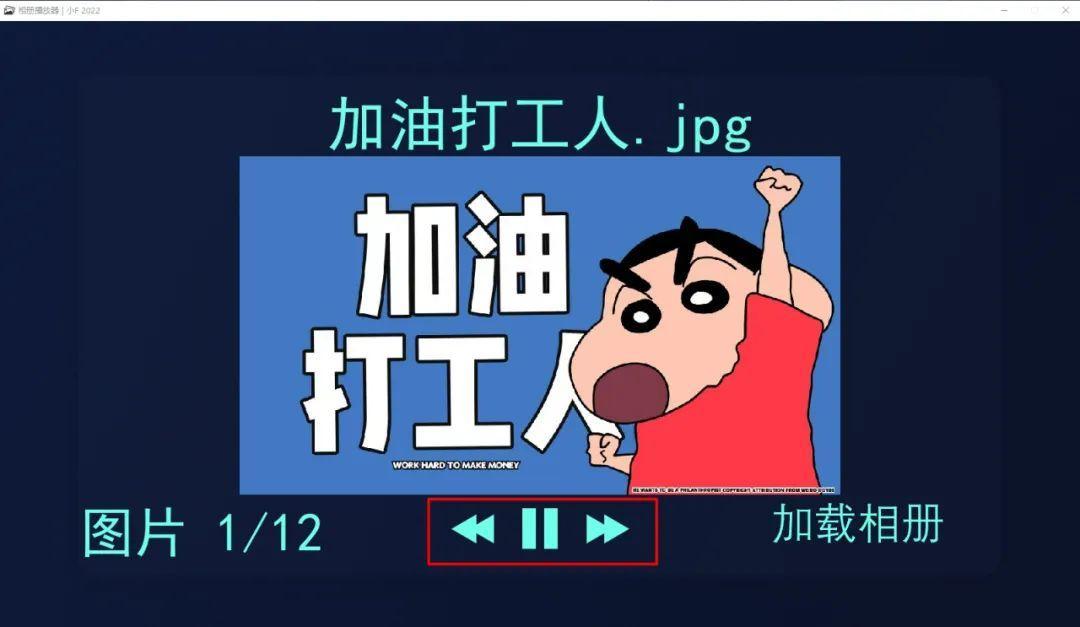
同样也有监听鼠标点击事件,根据鼠标点击情况,做向前、向后、暂停、开始等切换图片操作。
最终效果如下。

好了,本期的分享就到此结束了,有兴趣的小伙伴可以自行去实践学习。
讲真,Python能做的东西真不少...
以上就是本次分享的所有内容,如果你觉得文章还不错,欢迎关注公众号:Python编程学习圈,每日干货分享,发送“J”还可领取大量学习资料,内容覆盖Python电子书、教程、数据库编程、Django,爬虫,云计算等等。或是前往编程学习网,了解更多编程技术知识。
评论
登录后参与技术讨论,分享你的经验与见解。
登录 / 注册暂无评论