Promtheus实战系列(一)之环境部署与搭建

文章目录
一、部署prometheus,grafana和node_exporter
Prometheus开始教程:https://github.com/Alrights/prometheus/blob/master/introductions/FirstSteps.md
1.1 环境(centos7)
[root@localhost prometheus]# uname -a
Linux localhost.localdomain 3.10.0-957.10.1.el7.x86_64 #1 SMP Mon Mar 18 15:06:45 UTC 2019 x86_64 x86_64 x86_64 GNU/Linux
1.2 环境部署与服务启动
// 安装prometheus
wget  https://github.com/prometheus/prometheus/releases/download/v2.9.2/prometheus-2.9.2.linux-amd64.tar.gz
tar xzvf prometheus-2.9.2.linux-amd64.tar.gz
mv prometheus-2.9.2.linux-amd64 /usr/local/prometheus
// 添加prometheus用户,非必须 groupadd prometheus useradd -g prometheus -m -d /var/lib/prometheus -s /sbin/nologin prometheus
对systemctl不熟的可以了解[鸟哥的Linux私房菜](https://links.jianshu.com/go?to=http%3A%2F%2Flinux.vbird.org%2Flinux_basic%2F0560daemons.php%23daemon)
// prometheus系统服务配置 vim /etc/systemd/system/prometheus.service
[Unit] Description=prometheus After=network.target [Service] Type=simple User=prometheus ExecStart=/usr/local/prometheus/prometheus -config.file=/usr/local/prometheus/prometheus.yml -storage.local.path=/var/lib/prometheus Restart=on-failure [Install] WantedBy=multi-user.target
// 启动prometheus
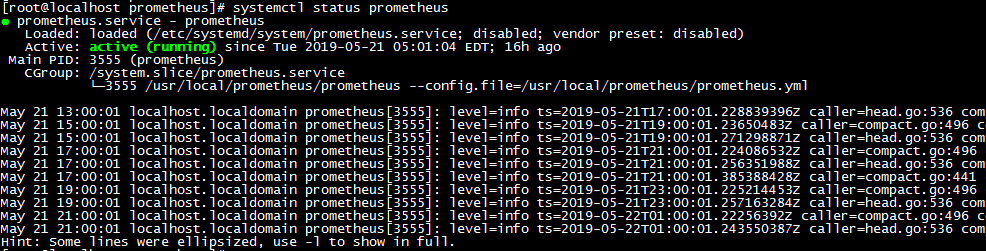
systemctl start prometheus
systemctl status prometheus
```

systemctl\_prometheus.png
2. node\_exporter setup
```
// 安装node_exporter
wget https://github.com/prometheus/node_exporter/releases/download/v0.18.0/node_exporter-0.18.0.linux-amd64.tar.gz
tar -zxvf node_exporter-0.18.0.linux-amd64.tar.gz
mv node_exporter-0.18.0.linux-amd64 /usr/local/node_exporter // 系统服务配置node_exporter vim /etc/systemd/system/node_exporter.service
[Unit] Description=node_exporter After=network.target [Service] Type=simple User=prometheus ExecStart=/usr/local/node_exporter/node_exporter Restart=on-failure [Install] WantedBy=multi-user.target
systemctl start node_exporter
systemctl status node_exporter
```

systemctl\_node\_exporter.png
3. add node\_exporter to prometheus.yaml
```
vim /usr/local/prometheus/prometheus.yml
- job_name: 'linux'
static_configs:
- targets: ['localhost:9100']
labels:
instance: node1 systemctl restart prometheus systemctl status prometheus
4. grafana setup
// 安装grafana wget https://dl.grafana.com/oss/release/grafana-6.1.6-1.x86_64.rpm yum localinstall grafana-6.1.6-1.x86_64.rpm // 启动grafana-server systemctl start grafana-server systemctl status grafana-server

systemctl\_grafana\_server.png
二、仪表化
-----
### 2.1 prometheus
prometheus默认端口为9090,可以在浏览器中输入[http://localhost:9090/](https://links.jianshu.com/go?to=http%3A%2F%2Flocalhost%3A9090%2F)
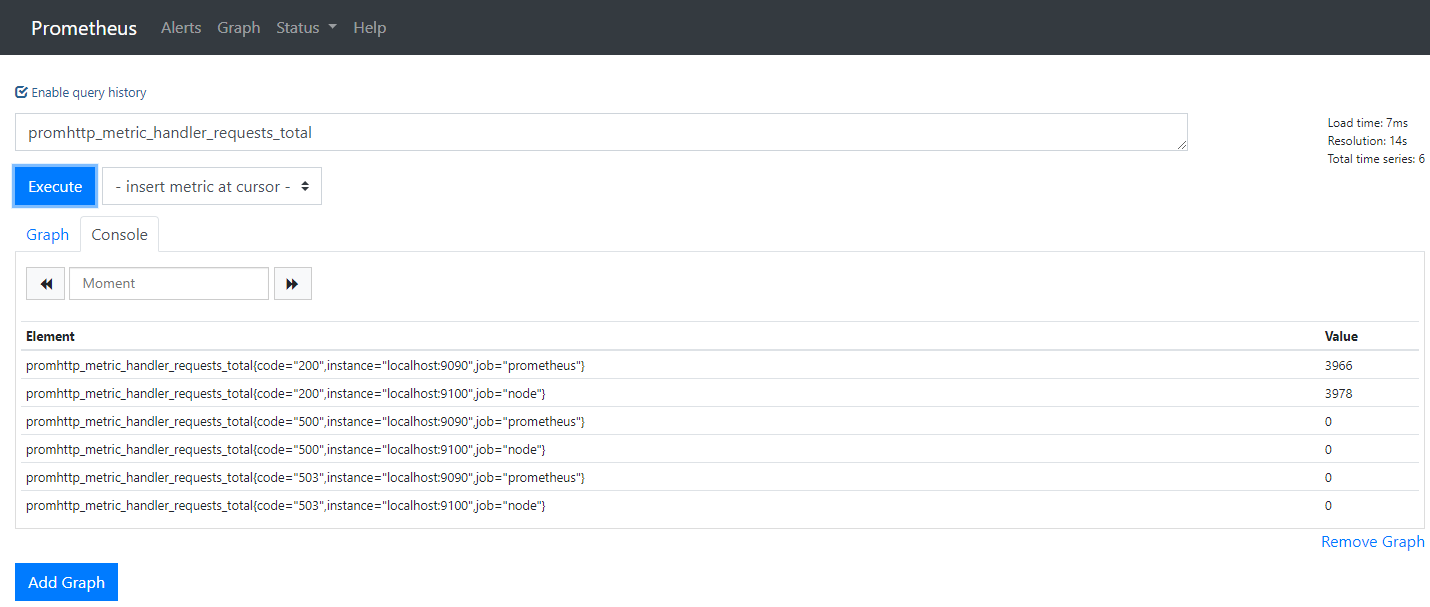
prometheus\_first\_start.png
### 2.2 granafa
granafa默认端口为3000,可以在浏览器中输入[http://localhost:3000/](https://links.jianshu.com/go?to=http%3A%2F%2Flocalhost%3A3000%2F)
* granafa首次登录账户名和密码`admin/admin`,可以修改
* 配置数据源`Data sources->Add data source -> Prometheus`,输入prometheus数据源的信息,主要是输入`name`和`url`
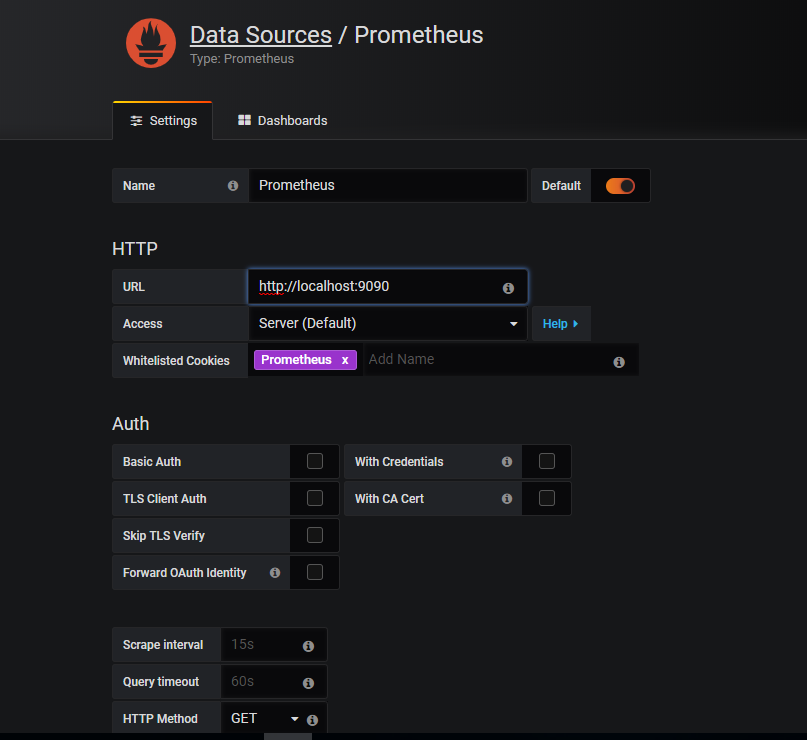
grafana\_prometheus\_datasource.png
* 添加Dashboard`New Dashboard->Import Dashboard->输入8919`,配置数据源为Prometheus,即上一步中的`name`
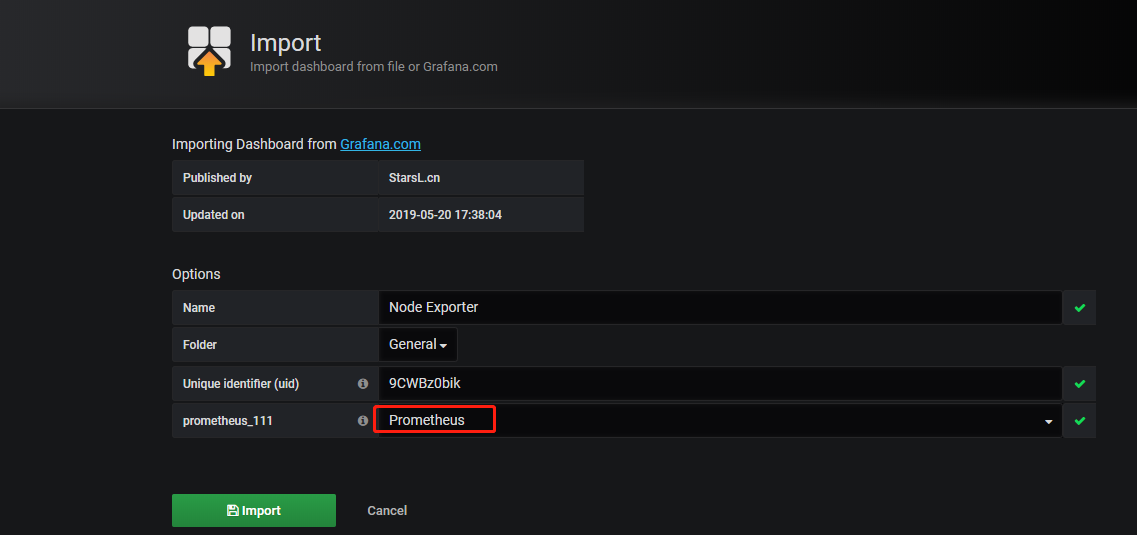
grafana\_dashboard\_node\_exporter.png
* 配置完保存后即可看到逼格非常高的系统主机节点监控信息,包括CPU、IO、网络等信息。
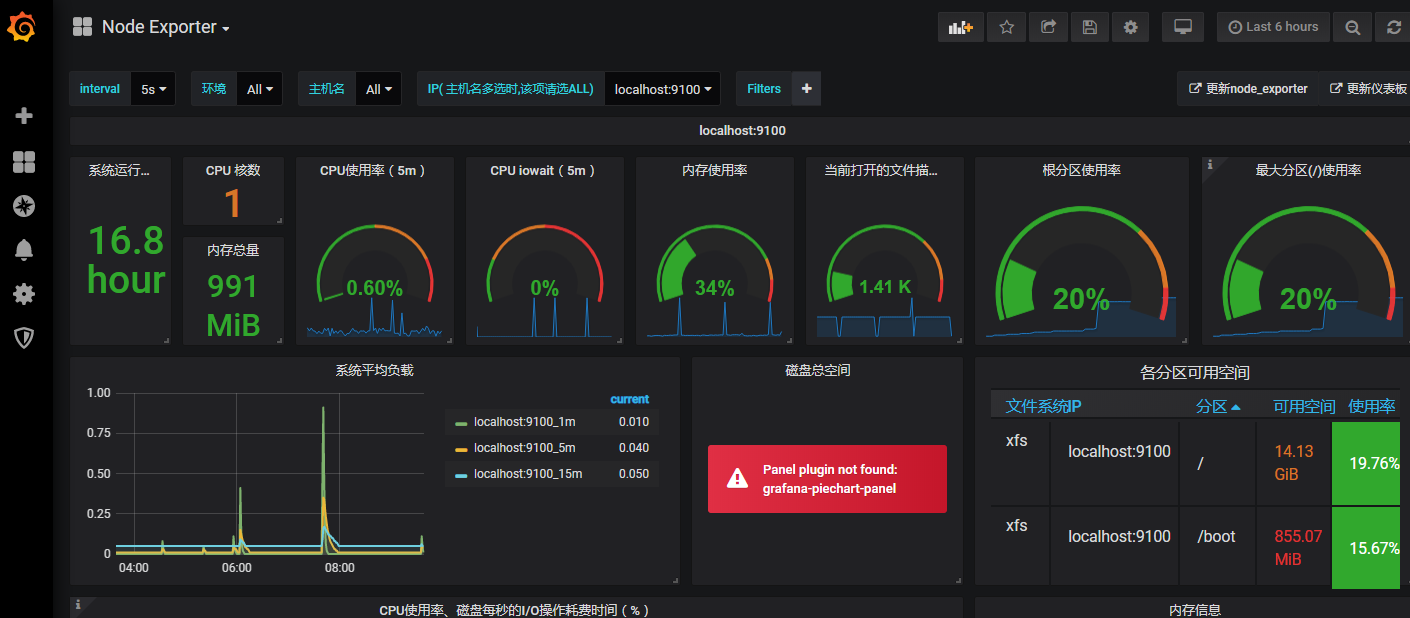
grafana\_first\_dashboard.png
三、tips
------
1. iptables(端口不通)
/sbin/iptables -I INPUT -p tcp --dport 9090 -j ACCEPT
2. datetime(设置时区)
timedatectl list-timezones timedatectl set-timezone Asia/Shanghai
```
本文转自 https://www.jianshu.com/p/65fcff832ad7,如有侵权,请联系删除。
评论
登录后参与技术讨论,分享你的经验与见解。
登录 / 注册暂无评论