IDEA使用教程

文章目录
配置
添加多个JDK.
菜单栏 -> File -> Project Structure -> Project Settings -> project -> Project SDK, 然后在 new 中,选择本地已经安装的JDK.在 Project Structure -> Platform Settings -> SDK 中,可以编辑添加的 SDK, 在这里也可以添加。
修改注解颜色:
在dark 主题中,学习阶段的原因,本人喜欢用草地绿作为注解的颜色. 突出注解。
Setting-->Editor-->Color Scheme -->Language Defaults
草地绿:
rgb(124, 252, 0)
#7CFC00
快键键
MacOS:
快速选中相同的变量/单词(选中该单词后): shift(⇧) + F6 / control(⌃) + command(⌘) + g
快速选择下一个相同的变量/单词: control⌃ + g (MacOS)
打开终端: option(⌥)+ F12
跳转到变量/函数定义的地方: command(⌘) + b
快速给选中的单行注释(// 注释): command(⌘) + /
快速给选中的多行注释(/**/): command(⌘) + option(⌃) + /
打开:
打开当前文件查找: command(⌘) + f
打开当前文件替换: command(⌘) + r
打开路径查找: command(⌘) + shift(⇧) + f
打开路径替换: command(⌘) + shift(⇧) + r
打开跳转到哪一行: command(⌘) + L
打开 Project Structure 设置: command(⌘) + ;
打开 preferences 设置: command(⌘) + ,
打开Project侧边栏: command(⌘) + 1
打开显示java类Structure: command(⌘) + 7
构建/启动/调试:
构建项目: command(⌘) + F9
启动IDEA查询到的入口函数文件: control(⌃) + R
调试IDEA查询到的入口函数文件:emsp; control(⌃) + D
启动: control(⌃) + option(⌥) + R
调试: control(⌃) + option(⌥) + D
热部署(更新HTML/JSP/JS/CSS代码、不用重启Tomcat):
菜单栏 -> RUN -> Edit Configurations1.新建 Tomcat用于运行

2.选择本地安装的tomcat
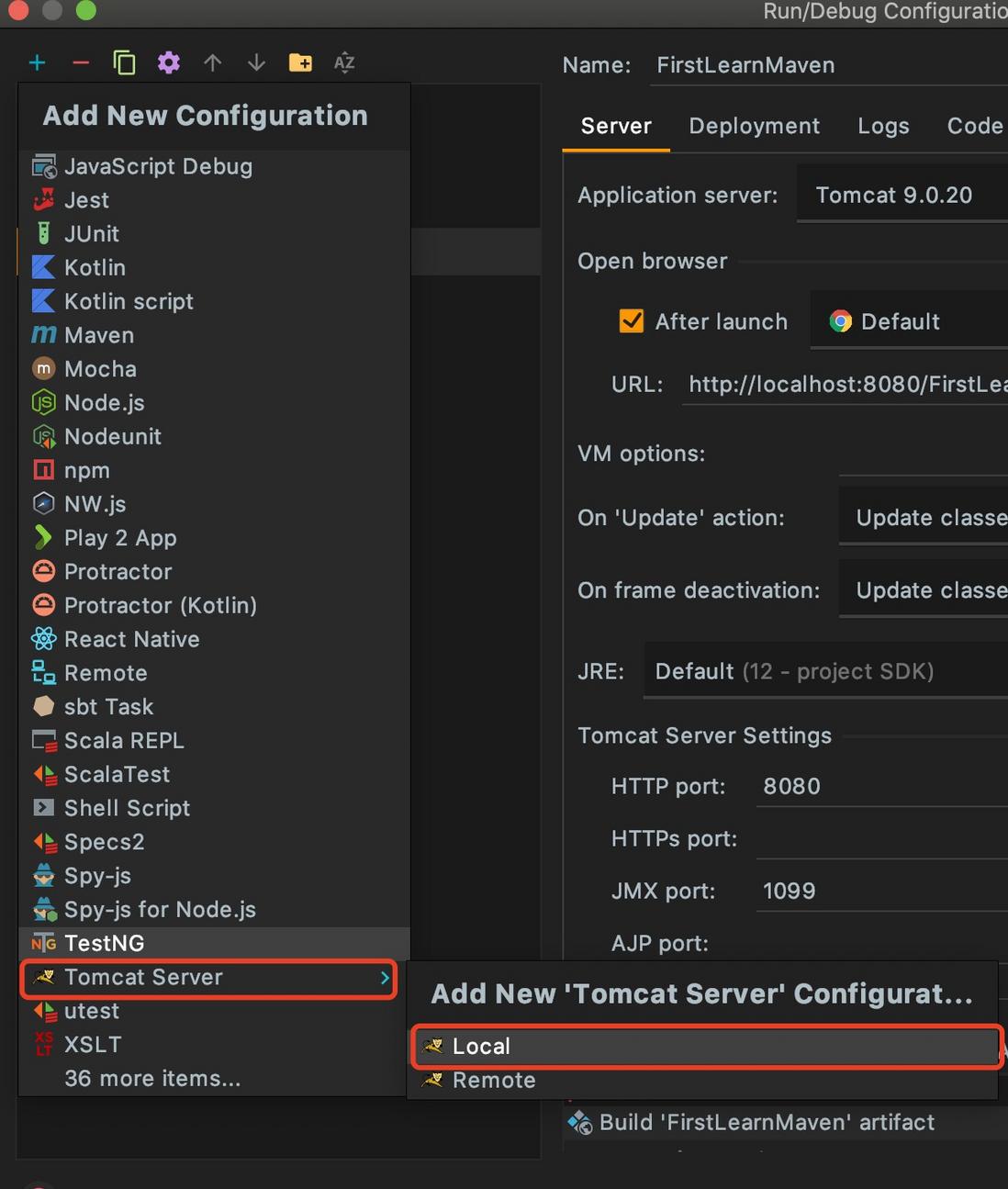
3.tomcat 的基本配置

技巧:
多光标选中多个地方:
普通键盘/笔记本:alt + shift
for MacBook: shift + ⌥ + 鼠标点击
IDEA怎么把普通webapp目录设置为web模块:
Project Structure -> Modules -> Add -> Web
1.选中普通的 webapp 目录,确定保存。
2.看到webapp上面增加了一个蓝色的圆形图标,说明配置成功。
Build Path:
Project Structure -> Modules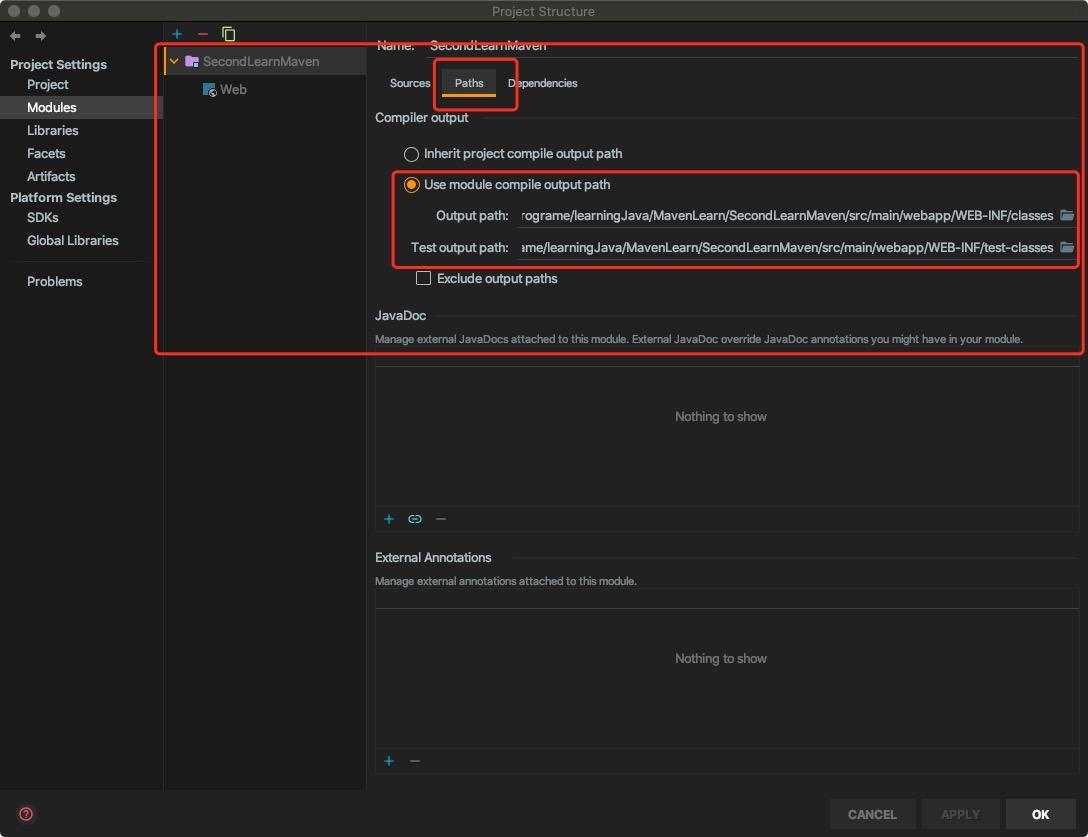
问题:
按键失灵:卸载 ideaVim 插件,重启 IDEA。
new 选项中,没有 package 选项: 把当前文件夹 / 根目录文件夹 设置为 Source Root 就行了,Mark Directory as 的选项。
在 IDEA 启动的 Tomcat 日志路径: /Users/用户名/Library/Caches/IntelliJIdea2019.3/tomcat/项目名称/logs 下面
评论
登录后参与技术讨论,分享你的经验与见解。
登录 / 注册暂无评论